Measuring Air
Get to know measurements and recordings and how to analyze them on the device and your computer.
Live View
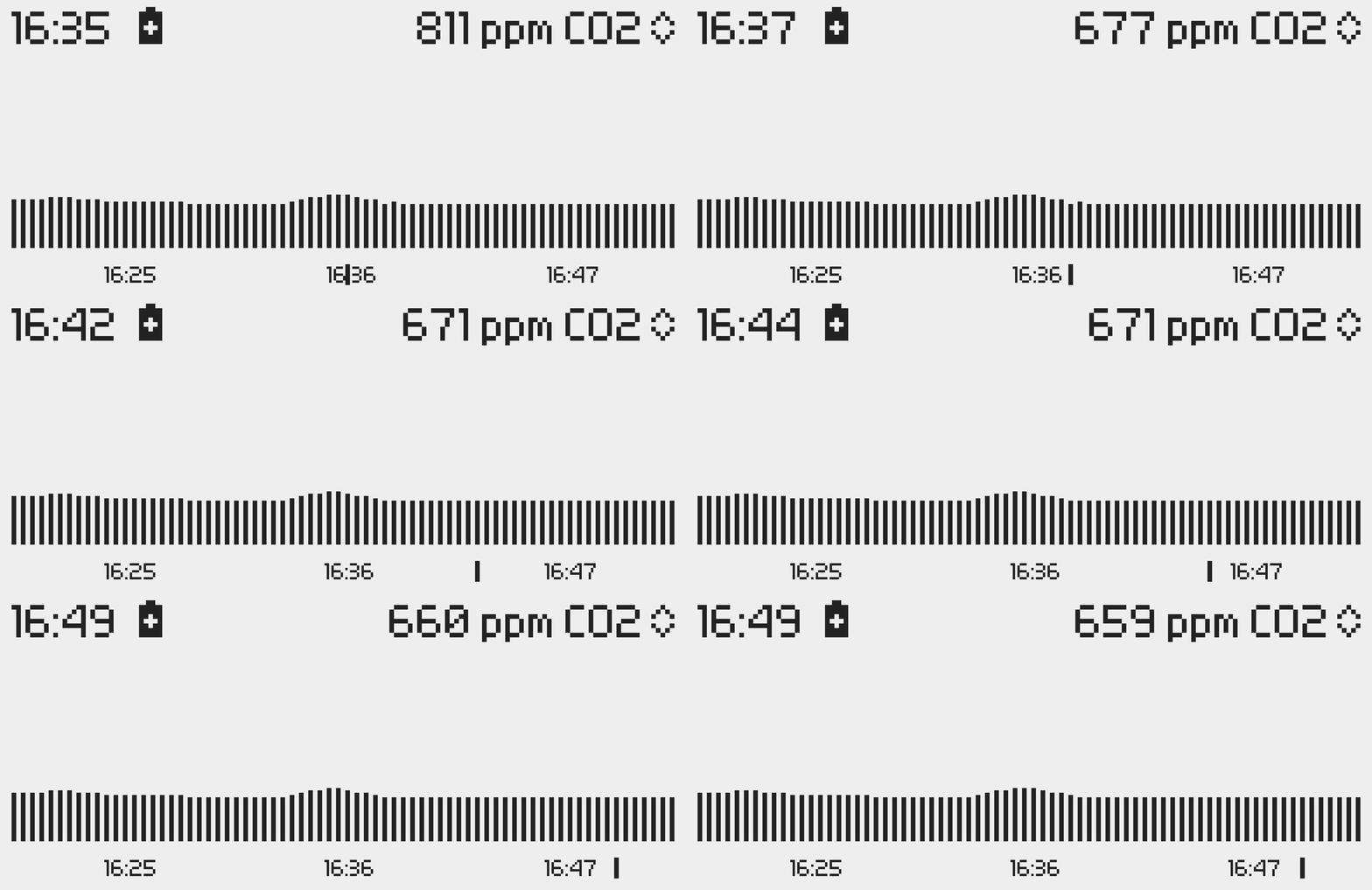
The Live View gives you instant access to recent air quality history—no need to start a formal measurement first.
Your Air Lab continuously stores samples in memory, so you can browse past data at any time. This buffer also lets you import the recent history when starting a new measurement.
Recording Measurements
Measurements let you capture air quality over hours or days—useful for tracking patterns in your home, monitoring a workspace, or documenting conditions during a specific event.
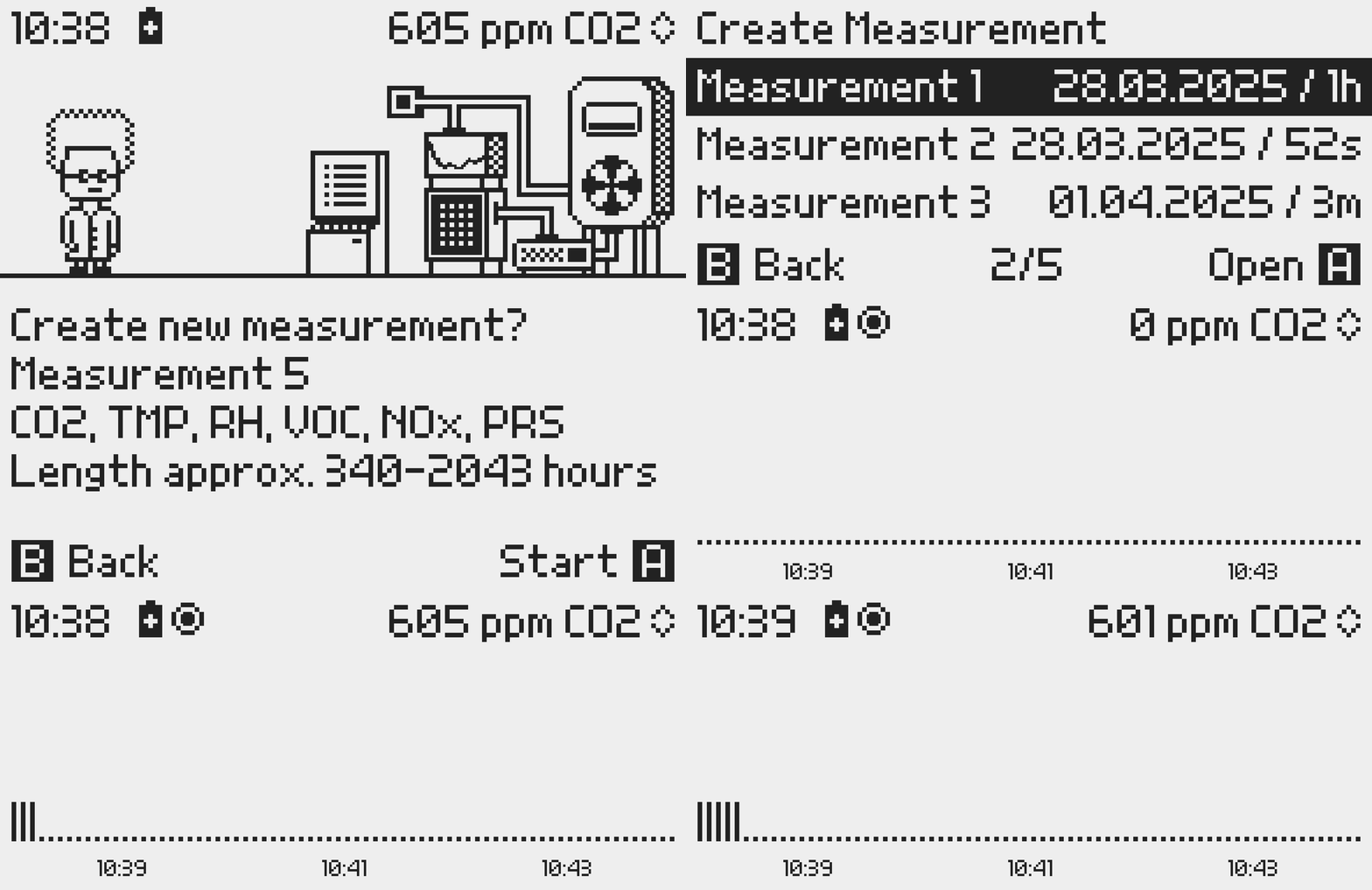
To start a new measurement:
- In the Lab, navigate to Measurements and press .
- Select Create new measurement.
- Choose to either import existing data from the past hours into the new measurement by pressing , or start an empty recording by pressing .
Task: Start your first measurement and let it run for at least 3 hours.
To indicate the running measurement, the recording symbol will appear on the top left side of the screen.
You can set marks with to highlight a specific moment during your measurement. Each mark will be noted with M followed by its index number (e.g., M9).
Stopping a measurement
- From the Lab, navigate to the Active Measurement and press to enter.
- Press . You'll now be asked to either stop the measurement or return to the Lab.
- Press to confirm Stop measurement.
Stored Measurements
Under measurement , you can view the past measurements, when they were taken and their length.
When entering a measurement, you can choose to Delete, Export CSV or Analyze it.
Precision Mode
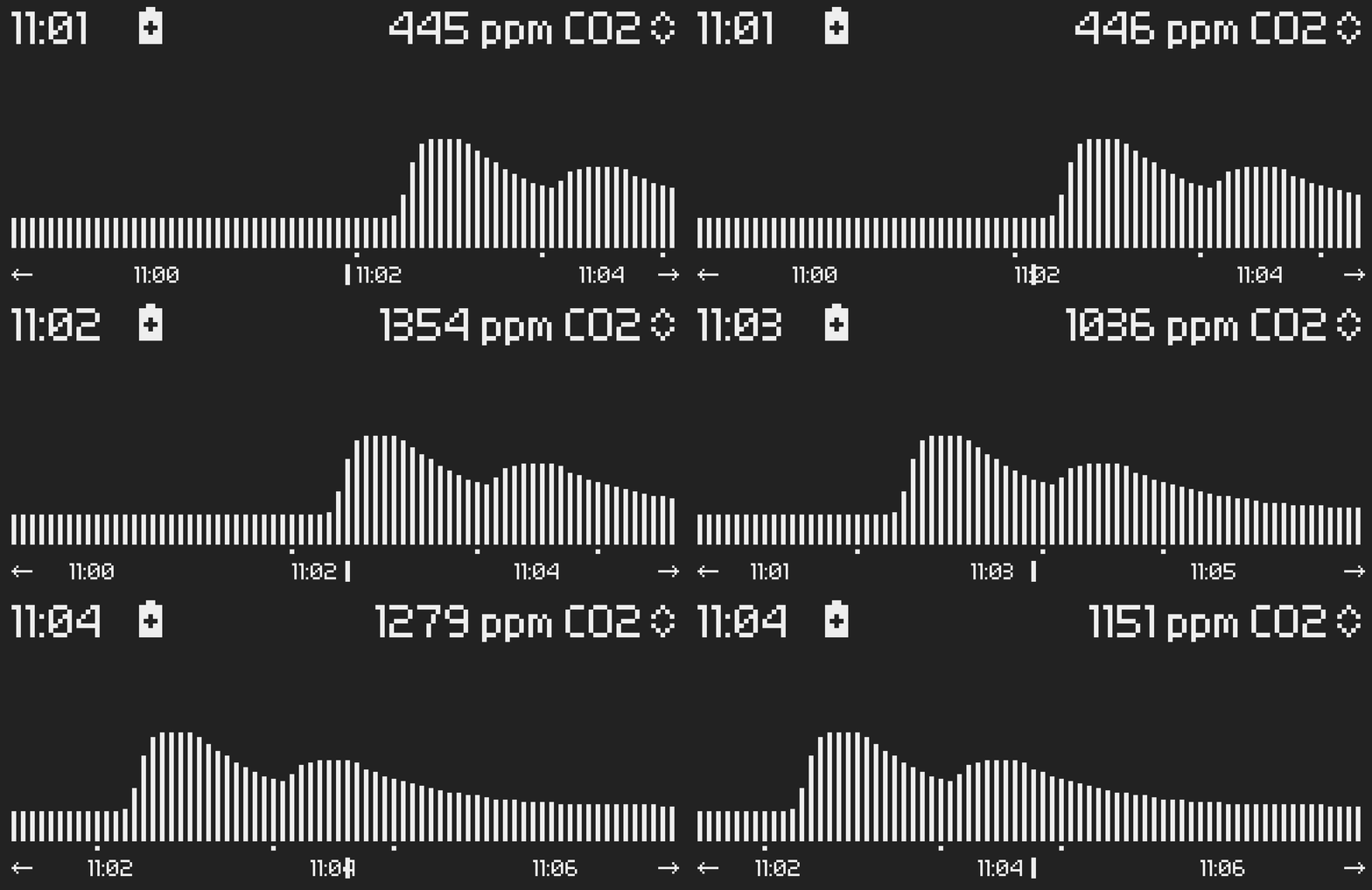
Precision Mode lets you examine individual samples and pinpoint exact moments in your data. Use it to find when CO₂ spiked, or to correlate a marked event with sensor readings.
Press in Live View or while analyzing a past measurement to enter Precision Mode. Your Air Lab interpolates between samples to give you a finer view—see Sample Collection for details on how this works.
Task: Use the scroll bar to move through the timeline and analyze the samples.
Points under the graph visualize marks that were added during an active measurement.
CSV Export
You can export measurements to analyze in a spreadsheet, create charts, or share with others. Air Lab uses the CSV (Comma Separated Values) format, which works with most data tools and is human-readable for backups.
To export a CSV file and import it
- Select the Measurements program from Prof. Robin's computer, select the measurement you would like to export, and open it by pressing .
- Export a CSV file by pressing .
- Connect your Air Lab to your computer with a USB-C cable.
- Activate the USB mode in the main screen.
Your Air Lab drive is now available on your computer, and you can copy the exported measurements.
When done, safely eject the drive from your computer before disconnecting the USB cable.
Back to Top